Thursday, November 8, 2007

Photoshop Tutorial - Chalk Text Effect


Here's a fun, yet easy to follow tutorial that shows how to make a chalk effect that looks like it's on asphalt texture.

Step-by-Step Instructions:

1. Open a new document in Photoshop. Set the dimensions to 550x150 px.

2. Create a new layer. Name it "Asphalt".

3. Use the Paint Bucket tool and fill in the entire layer with black.

4. Goto Filter > Sketch > Reticulation.
Set Density: 12
Set Foreground Level: 40
Set Background Level: 5
Click OK to accept changes.

5. You should now have an asphalt texture similar to the following:


6. Now select the Type tool and select white as your color. Type a word over the asphalt texture. In this tutorial, we'll type "PHOTOSHOP".


7. Change the layer properties for the text layer to "Overlay".


8. Goto Layer > Duplicate Layer... Click OK when the duplicate layer pop-up appears.

9. Goto Filter > Blur > Gaussian Blur. Click OK when asked to rasterize the type.


10. The Guassian Blur pop-up will then appear. Set the Radius to 3.5 pixels. Click OK to accept changes.

11. Repeat steps 9 and 10 to create a third text layer that has been blurred with the Gaussian Blur filter.

12. If you followed the preceding steps correctly, you should have three (3) text layers that says "PHOTOSHOP". One that is still a type layer and two duplicate layers above it that have been rasterized and blurred with the Guassian Blur filter.


13. This will result in your final chalk on asphalt text effect.

Magic hat light effect in Photoshop

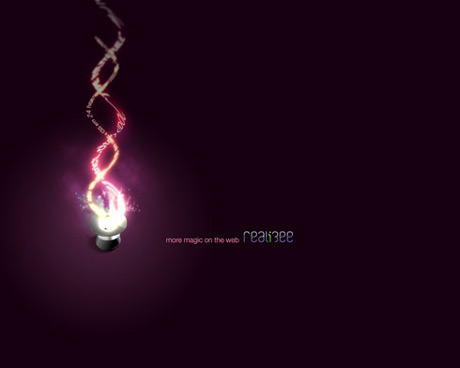
First of all here is the end result of this tutorial:

Step 1

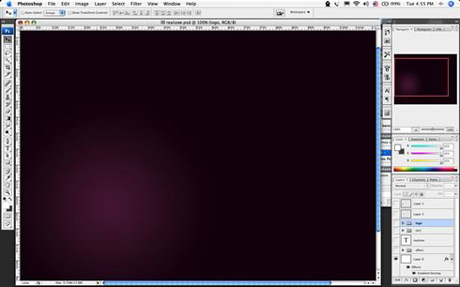
Create a radial gradient, in this case from a purple to a really dark purple.

Step 2

Add a really cool Icon of a magic hat from the Crystal Clear Collection by Everaldo.

Step 3

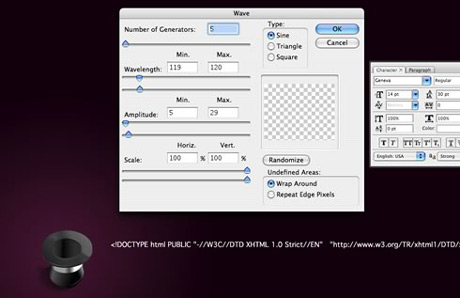
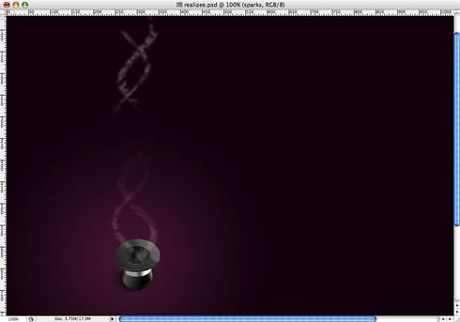
Add some text and apply the Distort/Wave filter. Create two stripes of text.

Step 4

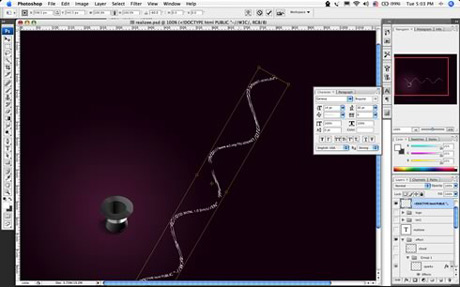
Rotate and place the text.

Step 5

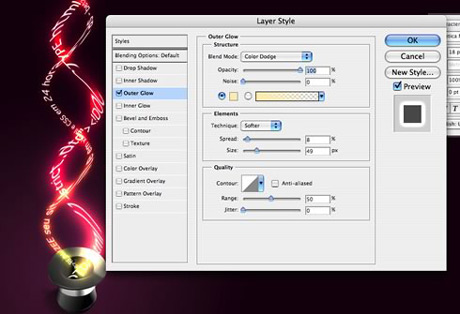
Add some light using glow: Use different values for each line of text, the secret here is the blending option COLOR DODGE. Change the values of Spread, Size and Range.

Step 6

Group the 2 lines of texts and with one apply a mask to make the stripes disappear at their ends.

Step 7

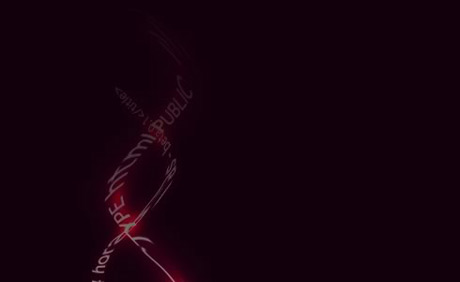
With the other group of text apply a Gaussian blur, after that delete some parts to show the non-blury text. This will add a movement feel to the text, like they are really being magicaly created.

Step 8

Create a new layer below the text and with a regular big brush like 100px add a spot of light in white. The layer must be below the text, otherwise the glow will not affect the white spot.

Step 9

Make some smoke again, I used the eraser, you could've used the liquify as well.

Step 10

Create a cloud: to do that make use a marquee with feather set to a value bigger than 20 and apply the render>clouds holding the Apple (Cmd) key on Mac OS X or CTRL on Windows. Apply the COLOR DODGE blending options on it.

Step 11

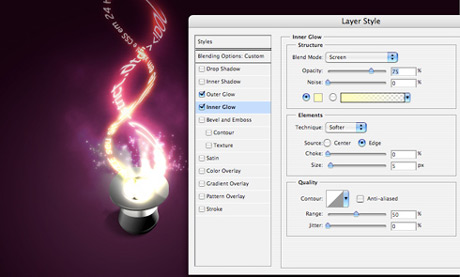
Sparks: For the sparks create a brush, play with the shape dynamics, scatering, and other dynamics. After that, apply a Outer Glow and Inner Glow to create the magic effect.

Final result again

The whole process takes about 35 minutes. It is really cool is to apply the color dodge blending option to the folder, and put blurred elements inside it. Using it you can create some really amazing light effects.