Thursday, November 8, 2007

Photoshop Tutorial - Chalk Text Effect


Here's a fun, yet easy to follow tutorial that shows how to make a chalk effect that looks like it's on asphalt texture.

Step-by-Step Instructions:

1. Open a new document in Photoshop. Set the dimensions to 550x150 px.

2. Create a new layer. Name it "Asphalt".

3. Use the Paint Bucket tool and fill in the entire layer with black.

4. Goto Filter > Sketch > Reticulation.
Set Density: 12
Set Foreground Level: 40
Set Background Level: 5
Click OK to accept changes.

5. You should now have an asphalt texture similar to the following:


6. Now select the Type tool and select white as your color. Type a word over the asphalt texture. In this tutorial, we'll type "PHOTOSHOP".


7. Change the layer properties for the text layer to "Overlay".


8. Goto Layer > Duplicate Layer... Click OK when the duplicate layer pop-up appears.

9. Goto Filter > Blur > Gaussian Blur. Click OK when asked to rasterize the type.


10. The Guassian Blur pop-up will then appear. Set the Radius to 3.5 pixels. Click OK to accept changes.

11. Repeat steps 9 and 10 to create a third text layer that has been blurred with the Gaussian Blur filter.

12. If you followed the preceding steps correctly, you should have three (3) text layers that says "PHOTOSHOP". One that is still a type layer and two duplicate layers above it that have been rasterized and blurred with the Guassian Blur filter.


13. This will result in your final chalk on asphalt text effect.

Magic hat light effect in Photoshop

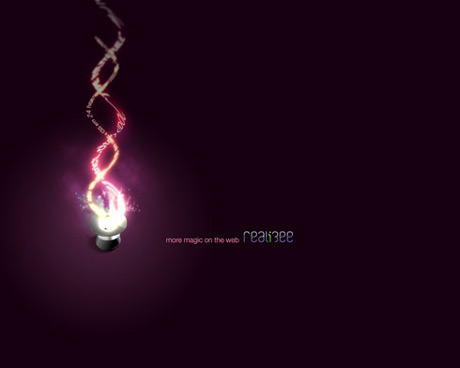
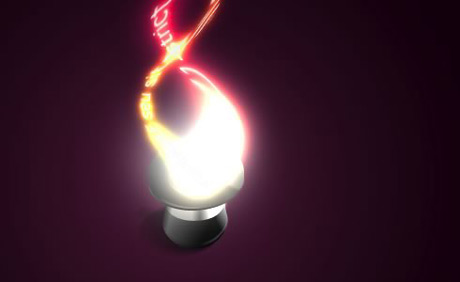
First of all here is the end result of this tutorial:

Step 1

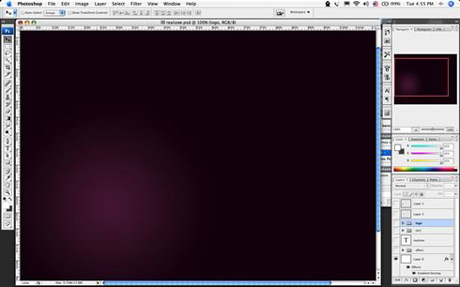
Create a radial gradient, in this case from a purple to a really dark purple.

Step 2

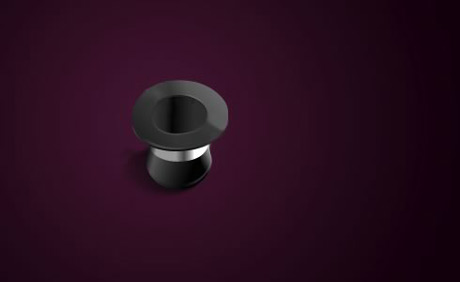
Add a really cool Icon of a magic hat from the Crystal Clear Collection by Everaldo.

Step 3

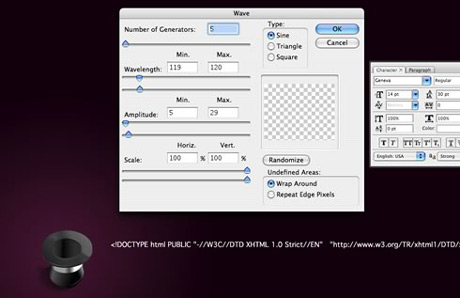
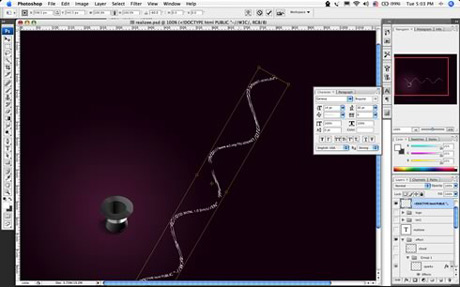
Add some text and apply the Distort/Wave filter. Create two stripes of text.

Step 4

Rotate and place the text.

Step 5

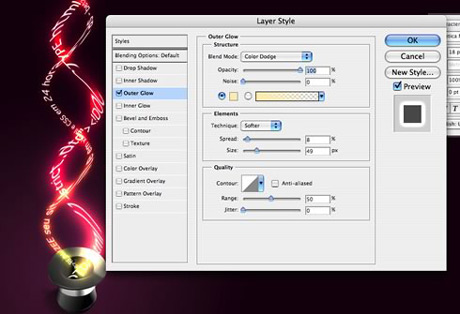
Add some light using glow: Use different values for each line of text, the secret here is the blending option COLOR DODGE. Change the values of Spread, Size and Range.

Step 6

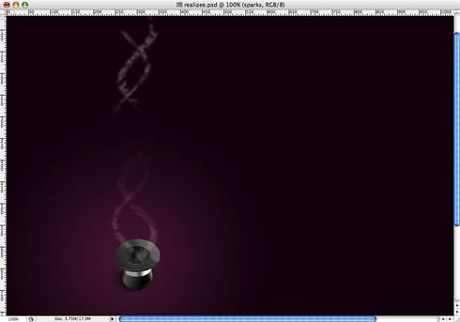
Group the 2 lines of texts and with one apply a mask to make the stripes disappear at their ends.

Step 7

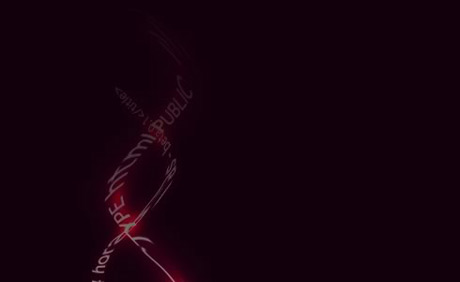
With the other group of text apply a Gaussian blur, after that delete some parts to show the non-blury text. This will add a movement feel to the text, like they are really being magicaly created.

Step 8

Create a new layer below the text and with a regular big brush like 100px add a spot of light in white. The layer must be below the text, otherwise the glow will not affect the white spot.

Step 9

Make some smoke again, I used the eraser, you could've used the liquify as well.

Step 10

Create a cloud: to do that make use a marquee with feather set to a value bigger than 20 and apply the render>clouds holding the Apple (Cmd) key on Mac OS X or CTRL on Windows. Apply the COLOR DODGE blending options on it.

Step 11

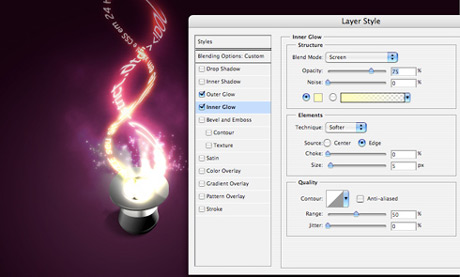
Sparks: For the sparks create a brush, play with the shape dynamics, scatering, and other dynamics. After that, apply a Outer Glow and Inner Glow to create the magic effect.

Final result again

The whole process takes about 35 minutes. It is really cool is to apply the color dodge blending option to the folder, and put blurred elements inside it. Using it you can create some really amazing light effects.

Sunday, October 21, 2007

How to draw a pumpkin in Illustrator

Let’s have some fun. Learn how to draw a realistic Halloween pumpkin in Illustrator so you can attach to your ecard or email.

Version: Illustrator 9+

1. Basic shapes

First, use the Pen tool and draw the basic shapes of the pumpkin.

1

2. Fill Gradient

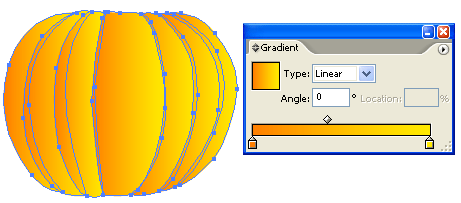
Fill the shapes with a linear gradient with no stroke fill. Gradient color1: R=255 G=127 B=0, color2: R=255 G=127 B=0

2

3. Shading

Select all shapes, go to menu Edit > Copy (Ctrl+C). Then go to menu Edit > Paste in Front (Ctrl+F) to paste in position.


3

With the shapes remain selected, open Pathfinder palette (Window > Pathfinder). Hold down Alt key, click on Add to shape area. This will merge shapes together.

4

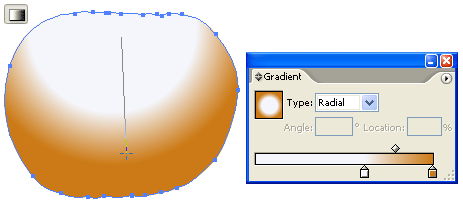
Select the following gradient setting - color1: R=255 G=255 B=255, color2: R=204 G=122 B=22. Slide the white picker toward the right side. With the merged shape remain selected, drag from the upper center toward bottom.

5

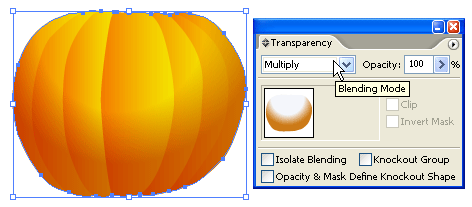
Change the Blending Mode of the merged shape to Multiply.

6

4. Stem

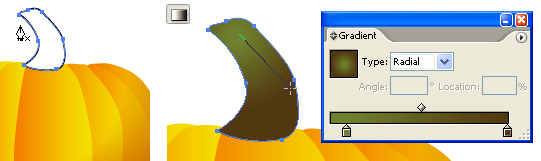
Use the Pen tool and draw a shape of stem on top of the pumpkin. Fill it with a radial gradient as shown. Gradient color1: R=111 G=129 B=46, color2: R=82 G=56 B=17.


7

5. Cutout Face

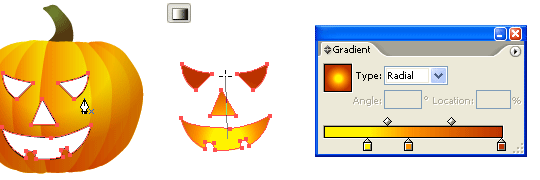
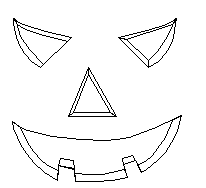
Make a new layer on top of the pumpkin. Use the Pen tool and draw the basic shapes of the face. Select all the shapes (face only), use the Gradient tool and fill it with a radial gradient as shown. Gradient color1: R=255 G=242 B=0, color2: R=255 G=146 B=0, color3: R=187 G=50 B=0.

8

6. Depth

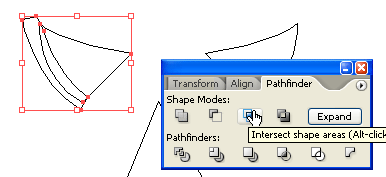
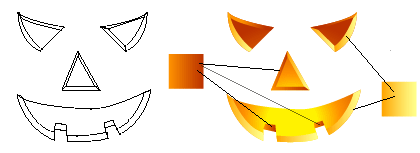
Now, we need to add some depth to the pumpkin cutouts. Use the Pen tool, roughly draw a shape intersect with the left eye cutout. Then Copy the left eye and Paste in Front. Select the left eye shape and the intersect shape, go to Pathfinder, hold down Alt key and click on Intersect shape areas.

9

Repeat this step until you get all the features done (eyes, nose, and mouth).

10

7. Shadow & Highligh

Fill the shadow area with a darker gradient (color1: R=255 G=146 B=0, color2: R=187 G=50 B=0). Then fill the highlight area with a lighter gradient (color1: R=255 G=255 B=139, color2: R=255 G=164 B=0).

11

Final

That’s it!

12

Thursday, October 11, 2007

Photoshop Tutorial: Matrix effect

Open a new Document, whatever size you like. Give it a black background layer. Create a new layer and select the type tool.

Now we'll get to work on creating that text with all the strange characters. How do we do it? Well, we could spend half the day typing strange keyboard combinations or call on the help of an every day text editor. Since I'm on a Mac the obvious choice is BBEdit. For PC's, I dunno, maybe word or something will work. What you do is open up a graphic file not supported by the text editor. I found opening a TIFF file worked quite nicely.

Look at that! Just like Matrix text except horizontal and not so glowing. Woo, now we're cookin. Select a big ol' chunk of text out of the middle somewhere and copy it to the clipboard. Head back into Photoshop next.With the type tool selected click and drag over the entire document to create paragraph text. Next select vertical type by clicking the icon in the left corner of the tool options bar, then select top align. Then, open the Character and Paragraph Palettes. Choose a nice computer font. I used Courier New. Set the font size to 6 px. Choose a green color for the text. Now paste your text from the clipboard and accept it by clicking the checkmark in the tool options bar. Set the Tsume to 70%. This reduces the space around the characters by 70%, scrunching them together more like the matrix text.


Set the spacing to 10 px and duplicate the layer.
Change the font size to 8 px and the spacing to 15 px.
Set the layers blend mode to Linear Dodge.
Duplicate that layer.
Change the font size to 10 px and the spacing to 30 px.
OK. Getting kinda busy isn't it? Let's work towards a little randomness now.
Click the layer mask icon at the bottom of the layers palette and set your foreground/background colors to default black and white (d).
Choose Filter>Render>Clouds then Image>Adjustments>Brightness/Contrast.
Slide the contrast all the way up to +100%.
Give it gaussian blur of about 20 pixels.
Do this with all three text layers and it should be looking better, but we're not done yet.

More randomness is in order. More masking is in order too. Create a new layer set by licking the folder icon at the bottom of the layers palette then drop your 3 text layers in there. Make sure the layer set is selected and click on the layer mask icon. This time we'll be spending a little more time with our masking. Choose the brush tool and select a 6 pixel, hard, round brush. Make sure black is your foreground color and start painting away strips of text being sure to leave lone strips falling down by themselves. You'll want to take more from the bottom than the top and just kind of break it up some in the middle. Remeber if goof you can always paint stuff back in with white, your text isn't really being harmed. The beauty of layer masks.

Now let's give the text a little glow. Duplicate each text layer. After you duplicate it right click on the layer and choose "rasterize layer", then right click on the layer mask thumbnail and choose "apply layer mask". After you've made a rasterized copy of all 3 text layers and applied their layer masks move them beneath the text layers and merge them together. Give them a gaussian blur of about 1.5 pixels. Click the layer mask button again and choose render clouds. I just thought it looked lonely down there all by itself without a mask to keep it company.

Almost done.Create a new layer above the layer set.
Select the transparency of all 3 text layers by command clicking on the first layer and then shift-command clicking on the last 2.
Press command-h to hide the selection so you can see what your doing. Set white as your foreground color and paint in highlights for the text. Deselect and give it a gaussian blur of about 1.5 pixels, set the blending mode to Color Dodge and drop the opacity to about 80%.

This one's optional. If your color seems a little bit off like mine did just add a hue/saturation adjustment layer and slide the hue around until you're happy.
Now we'll do the big text.
Create a new layer on top. Select the type tool and a font that looks good for the job in capitals. I used Palatino at 48 pixels. You could probably find a better Matrix font at one of the download sites if you wanted to. You should also reset your tsume and spacing back to normal in the character palette.
Type your text in white and duplicate the layer twice. Rasterize all 3 layers.
Go to the bottom text layer and tick the preserve transparency box in the layers palette. Fill the layer with the color you used for the background text and uncheck the preserve transparency box.
Do this for the middle text layer as well. On the bottom text layer choose Filter>Blur>Motion Blur, set the angle to 0 and blur it until it looks about right.
On the middle text layer make sure preserve transparency is off and choose Filter>Other>Minimum and enter a setting of 2 pixels or so depending on the size of your type. Now give it a small gaussian blur, maybe 2 or 3 pixels.
On the top (white) text layer select the rectangular marquee tool and select a piece of text on one of your letters. Then select the move tool and nudge the selection any direction you want by 1 or 2 pixels. Repeat as necessary until you're done. Link the three text layers together and position them wherever you want.
That's it, you're done.

In hindsight I think this effect could probably be improved by using more text layers, especially the smaller ones, and varying the spacing more but at the moment I don't really care to go back and rewrite the tut for it. The best advice I can give for achieving any effect is to look at an example and try to recreate that. Just play around trying different things until you get it right.. you'll learn so much in the process and won't need tutorials for everything anymore. That's exactly what I did here, I just took the time to type it out as I fiddled.